The transformation system
Introduction
GDPC’s most powerful feature is probably its transformation system. It is however also one of its more complex features.
The transformation system allows you to “transform” your frame of reference for placing blocks, so that you can always build using local coordinates instead of global ones. The concept is based on the use of transformation matrices in 3D graphics APIs.
The system allows you to not only translate, but also rotate and flip your frame of reference. And importantly, blocks that have an orientation (such as stairs blocks) will get appropriately transformed as well!
If you’re programming, say, a house function, you could just always build the house at (0,0,0) with its door pointing north, and then later call the function with different transformations to place the house at any position and in any orientation.
The Transform class
The transformation system begins with the Transform class, which acts
more or less like a transformation matrix. It represents a transformation of
space, or more simply, an operation to apply to vectors. Transforms consist of
three components:
A translation vector (a 3D integer vector).
A rotation around the Y-axis (0, 1, 2 or 3).
A flip vector (a 3D boolean vector).
from gdpc import Transform

transform = Transform((1,2,3), 1, (True, False, False))
Translation
The first component is translation. Applying a translation to a vector means simply adding the translation to that vector: translating (2,0,2) by (2,0,1) results in (4,0,3).
Transforms can be applied to vectors with Transform.apply() or the *
operator.
translation = Transform((2,0,2))

vec = (2,0,1)

result = translation * vec # (4, 0, 3)
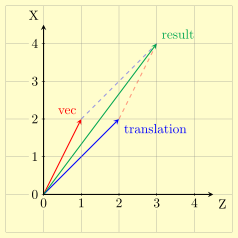
Effect of translating (2,0,1) by (2,0,2). Only the XZ-plane is shown.
Vectors are depicted as arrows originating from (0,0).
The axes are oriented according to Minecraft’s coordinate
system.
Rotation
The second component is rotation around the Y-axis. Only multiples of 90 degree
rotations are supported. The options are 0 (no rotation), 1 (90 degree
rotation), 2 (180 degree rotation) and 3 (270 degree rotation). A 90 degree
rotation rotates from positive X towards positive Z. In Minecraft’s coordinate
system, this is clockwise.
Note
The standard math convention for rotations is that positive rotations go counter-clockwise, but this isn’t the case in Minecraft. GDPC follows Minecraft’s convention, so positive rotation goes clockwise.
rotate1 = Transform(rotation=1)
rotate2 = Transform(rotation=2)
rotate3 = Transform(rotation=3)

vec = (2,0,1)

rotated1 = rotate1 * vec # (1, 0, -2)
rotated2 = rotate2 * vec # (-2, 0, -1)
rotated3 = rotate3 * vec # (-1, 0, 2)
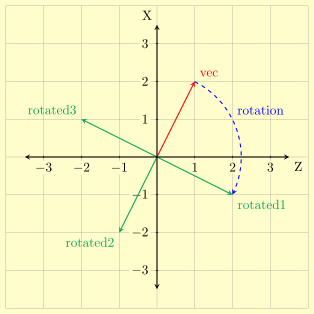
Effect of rotating (2,0,1).
Flipping
The third component is a flip/mirror vector. Flipping in an axis inverts the sign in that axis.
flipX  = Transform(flip=(True, False, False))
flipZ  = Transform(flip=(False, False, True))
flipXZ = Transform(flip=(True, False, True))

vec = (2,0,1)

flippedX  = flipX  * vec # (-2, 0, 1)
flippedZ  = flipZ  * vec # (2, 0, -1)
flippedXZ = flipXZ * vec # (-2, 0, -1)
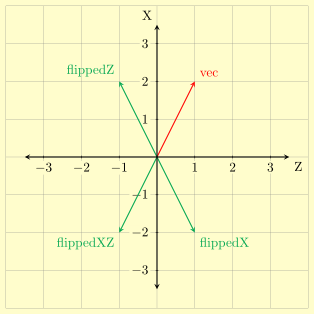
Effect of flipping (2,0,1).
Multiple components
If a transform has multiple components, it flips first, rotates second and translates third.
transform = Transform(translation=(1,0,1), rotation=1)

vec = (2,0,-1)

result = transform * vec # (2,0,3)
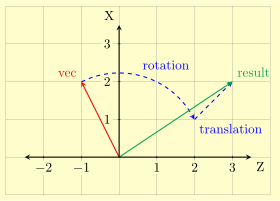
Effect of rotating and then translating (2,0,-1).
Transforms as a change of axes
While we’ve shown examples of transforms being an “operation to apply to vectors”, more complex situations may become easier to understand if you view transforms as a change of axis system.
Consider again the transform from the previous example, which rotates by 1 and then translates by (1,0,1). If we transform the axes, we’ll see the following:
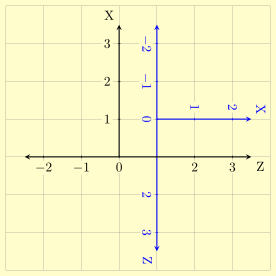
Effect of rotating and then translating the axis system.
We can now see the effect that the transform has on any vector by drawing the vector in both axis systems. For example, we’ll again see that (2,0,-1) gets mapped to (2,0,3):
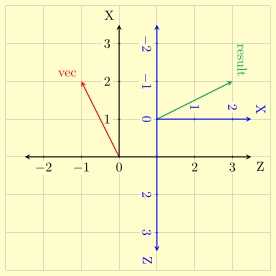
Effect of rotating and then translating (2,0,-1).
Transform composition
It is possible to construct a transform that applies the combined effect of
multiple other transforms. This is called composition. Transform objects can
be composed with Transform.compose() or the @ operator:
t1 = Transform(translation=(2,0,-2))
t2 = Transform(rotation=1)
t3 = Transform(translation=(4,0,-1))
composed = t1 @ t2 @ t3 # composed: translation=(3,0,2), rotation=1

vec = (1,0,1)
result = composed * vec # (2,0,3)
There are two ways to explain the meaning of of t1 @ t2 @ t3:
t1 @ t2 @ t3means “apply t1 after t2 after t3”: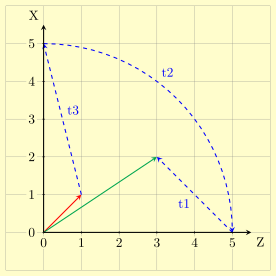
Effect of applying
t1 @ t2 @ t3to (1,0,1).¶t1 @ t2 @ t3means “transform the axes according to t1, then t2, then t3”.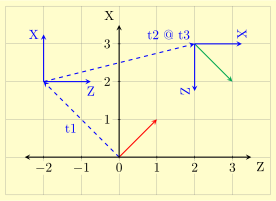
Effect of applying
t1 @ t2 @ t3to (1,0,1).
We’ve drawnt2 @ t3as one step, because thet1andt2axis systems would otherwise overlap.
There are two more composition-related methods that we’ll need for the upcoming Minecraft examples:
Transform.push()/@=adds a the effect of a transform on top of another one: the statementa @= bis equivalent toa = a @ b.Transform.pop()does the opposite ofpush: performinga.pop(b)aftera.push(b)will revertato what it was before.
For more methods and operators, see the API reference for the
Transform class.
The Editor point-of-view transform
The Editor class has a transform attribute that
represents the editor’s “point of view” / axis system. It is applied to all
position arguments in world interaction methods like placeBlock() and
getBlock(), and it also affects most functions with an Editor parameter
(such as those from the geometry module). This means that, if you adjust
Editor.transform and then build a structure, the entire structure will be
transformed! For example:
from gdpc import Editor, Block, Transform
from gdpc.geometry import placeCuboid, placeCheckeredCuboid

# This function builds a structure at seemingly hard-coded coordinates.
def buildExampleStructure(editor):
    editor.placeBlock((0,0,0), Block("yellow_concrete"))
    placeCuboid(editor, (1,0,0), (3,0,0), Block("red_concrete"))
    placeCuboid(editor, (0,1,0), (0,2,0), Block("lime_concrete"))
    placeCuboid(editor, (0,0,1), (0,0,3), Block("blue_concrete"))

editor = Editor()

# Place a checkerboard-patterned platform at Y=99.
placeCheckeredCuboid(
    editor,
    (-1,99,-2), (5,99,10),
    Block("gray_concrete"), Block("white_concrete")
)

# Add a transformation that translates by (0,100,0).
editor.transform @= Transform(translation=(0,100,0))

# Build the structure.
buildExampleStructure(editor)

# Add a transformation that rotates by 3 and then translates by (1,0,8),
# "on top" of the previous translation.
editor.transform @= Transform(translation=(1,0,8), rotation=3)

# Build the structure again, from the new point of view.
buildExampleStructure(editor)
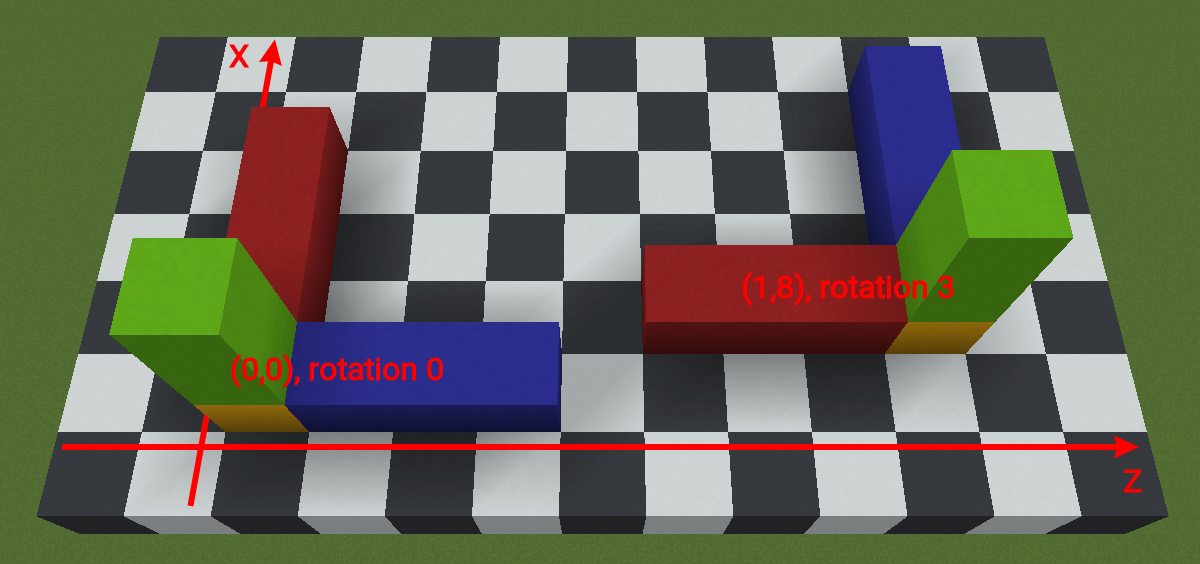
The example structure built from different points of view. Only XZ-coordinates are shown.
Another common use-case of Editor.transform is to translate to the build
area. The following snippet translates to the start of the
build area in the XZ-plane:
from gdpc import Editor, Block, Transform

editor = Editor()

buildArea = editor.getBuildArea()

editor.transform @= Transform((buildArea.offset.x, 0, buildArea.offset.z))

# Place a block at buildArea.offset.x + 5, 80, buildArea.offset.z + 5
editor.placeBlock((5,80,5))
By translating to the build area at the start of your program, you no longer need to add its offset to every block/biome placement and retrieval you do!
Editor.pushTransform()
It is often useful to temporarily change the point of view, execute some code,
and then revert the point of view to what it was before. One way to do this is
by using Transform.push()/@= and Transform.pop():
# <build some stuff>

transform = Transform((1,2,3))
editor.transform.push(transform)

# <build some stuff from the new point of view>

editor.transform.pop(transform)

# <build more stuff from the original point of view>
However, since this pattern is very common, there is a method that makes it
easier: Editor.pushTransform() (not to be confused with
Transform.push()).
Editor.pushTransform() is a
context manager,
which means that you should call it using the with keyword. It creates a
context that reverts all changes to Editor.transform on exit:
with editor.pushTransform():
    editor.transform @= Transform((1,2,3))
    # <build some stuff>

# Editor.transform is now back to what it was before the with statement.
If you pass a transform object as an argument, it is pushed to
Editor.transform on entry.
with editor.pushTransform(Transform((1,2,3))):
    # <build some stuff>
On top of that, since it is also very common to use transforms that only
translate, you can also pass a vector to Editor.pushTransform() directly,
which will be interpreted as a translation.
with editor.pushTransform((1,2,3)):
    # <build some stuff>
Oriented blocks
Transforming vectors is part of the story, but if your transformation involves
rotating or flipping, then Editor.transform does even more than that. The real
power of GDPC’s transformation system is that it can also transform individual
blocks.
Certain Minecraft blocks can multiple orientations, depending on their block states:
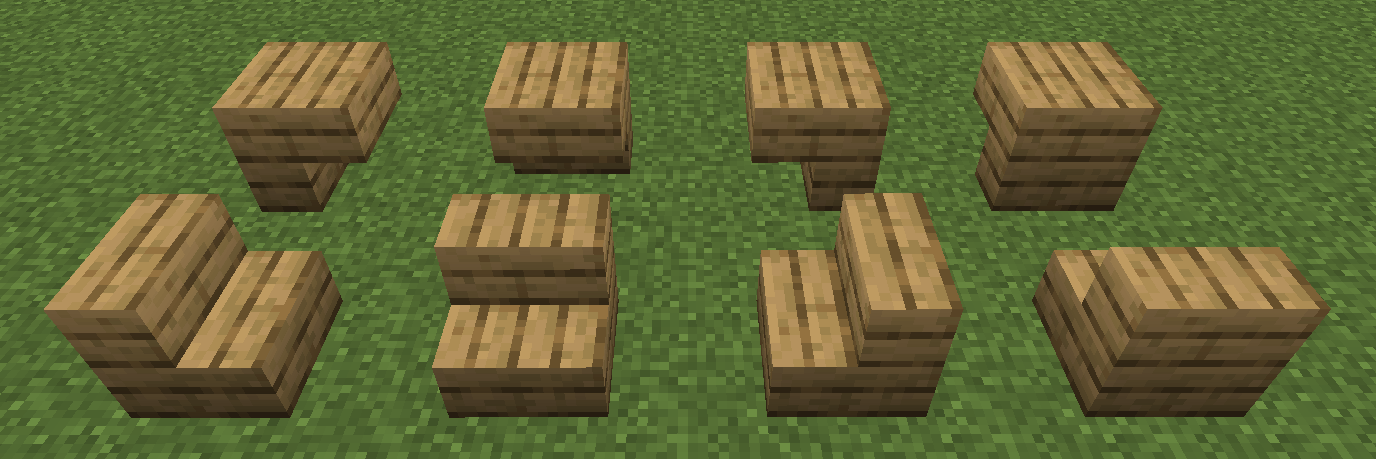
The possible orientations of a stairs block.
From left to right: facing: north, east, south, west.
From top to bottom: half: top, bottom.
If Editor.transform involves rotation or flipping, Editor.placeBlock will
automatically adjust most of these orientation-defining block states. This
ensures that structures with oriented blocks look correct under any
transformation:
from gdpc import Editor, Block, Box, Transform
from gdpc.geometry import placeBox, placeCheckeredCuboid

# This function builds a staircase, which involves oriented blocks.
def buildStaircase(editor):
    baseBlock   = Block("cobblestone")
    stairsBlock = Block("oak_stairs", {"facing": "north", "half": "bottom"})
    for z in range(3):
        for y in range(2-z):
            placeBox(editor, Box((0,y,z), (3,1,1)), baseBlock)
        placeBox(editor, Box((0,2-z,z), (3,1,1)), stairsBlock)

editor = Editor()

with editor.pushTransform((0,99,0)):
    placeCheckeredCuboid(
        editor,
        (-2,0,-3), (5,0,15),
        Block("gray_concrete"), Block("white_concrete")
    )

    # Build three versions of the staircase:

    with editor.pushTransform(Transform((0,1,0))):
        buildStaircase(editor)

    with editor.pushTransform(Transform((2,1,5), rotation=1)):
        buildStaircase(editor)

    with editor.pushTransform(Transform((0,3,10), flip=(False, True, False))):
        buildStaircase(editor)

A staircase in three orientations.
Note
You may nave noticed that the translations we use for the three staircases don’t cleanly increase by (0,0,5) every time. An explanation why and some related helper methods will be given in Volume transformation helpers further below.
You can also transform an individual Block manually, which may
sometimes be useful:
block = Block("oak_stairs", {"facing": "north"})
block = block.transformed(rotation=1)
print(block) # oak_stairs[facing=east]
One thing to keep in mind is that, although Minecraft assigns default values for any missing block states on placement, GDPC’s transformation system can only transform oriented blocks if you explicitly specify the relevant block states.
# No facing value specified.
# If you place this block, Minecraft will assign the default value facing=north.
block = Block("oak_stairs")

block = block.transformed(rotation=1)
print(block) # oak_stairs
# The block still doesn't have a facing value, so Minecraft will still assign
# the default value facing=north (even though this block is supposedly rotated).
This limitation may be resolved in a future version of GDPC.
Execution position of Minecraft commands
The Editor.runCommand() method has an optional position argument that,
if set, changes the execution position of the executed Minecraft command. This
position is also transformed according to Editor.transform, though there are
a few limitations. See the API reference for Editor.runCommand() for more
info.
Global method variants
For all Editor methods that are affected by Editor.transform, there is also
a global variant that ignores the transform. For example,
Editor.placeBlockGlobal().
The non-global world interaction methods call Transform.apply()/* for every
passed position. Though it is rarely necessary, you may sometimes be able to
reduce the number of these calls and thus improve performance by applying
Editor.transform manually and then using the global method variants. Some
GDPC functions do this internally. For example, geometry.placeCuboid only
transforms the corners of the cuboid to place.
Do note that if you want to apply this optimization, you’ll also have to
manually transform all involved Blocks.
Volume transformation helpers
When using a rotating or flipping transformation, note that structures will extend in a different direction. For example, a structure extending to positive X will extend to negative X when flipped in the X-axis:
from gdpc import Editor, Block, Transform
from gdpc.geometry import placeCuboid, placeCheckeredCuboid

def buildExampleStructure(editor):
    editor.placeBlock((0,0,0), Block("yellow_concrete"))
    placeCuboid(editor, (1,0,0), (3,0,0), Block("red_concrete"))
    placeCuboid(editor, (0,1,0), (0,2,0), Block("lime_concrete"))
    placeCuboid(editor, (0,0,1), (0,0,3), Block("blue_concrete"))

editor = Editor()

with editor.pushTransform((0,99,0)):
    placeCheckeredCuboid(
        editor,
        (-4,0,-2), (4,0,10),
        Block("gray_concrete"), Block("white_concrete")
    )

    with editor.pushTransform(Transform((0,1,0))):
        buildExampleStructure(editor)

    with editor.pushTransform(Transform((0,1,5), flip=(True, False, False))):
        buildExampleStructure(editor)
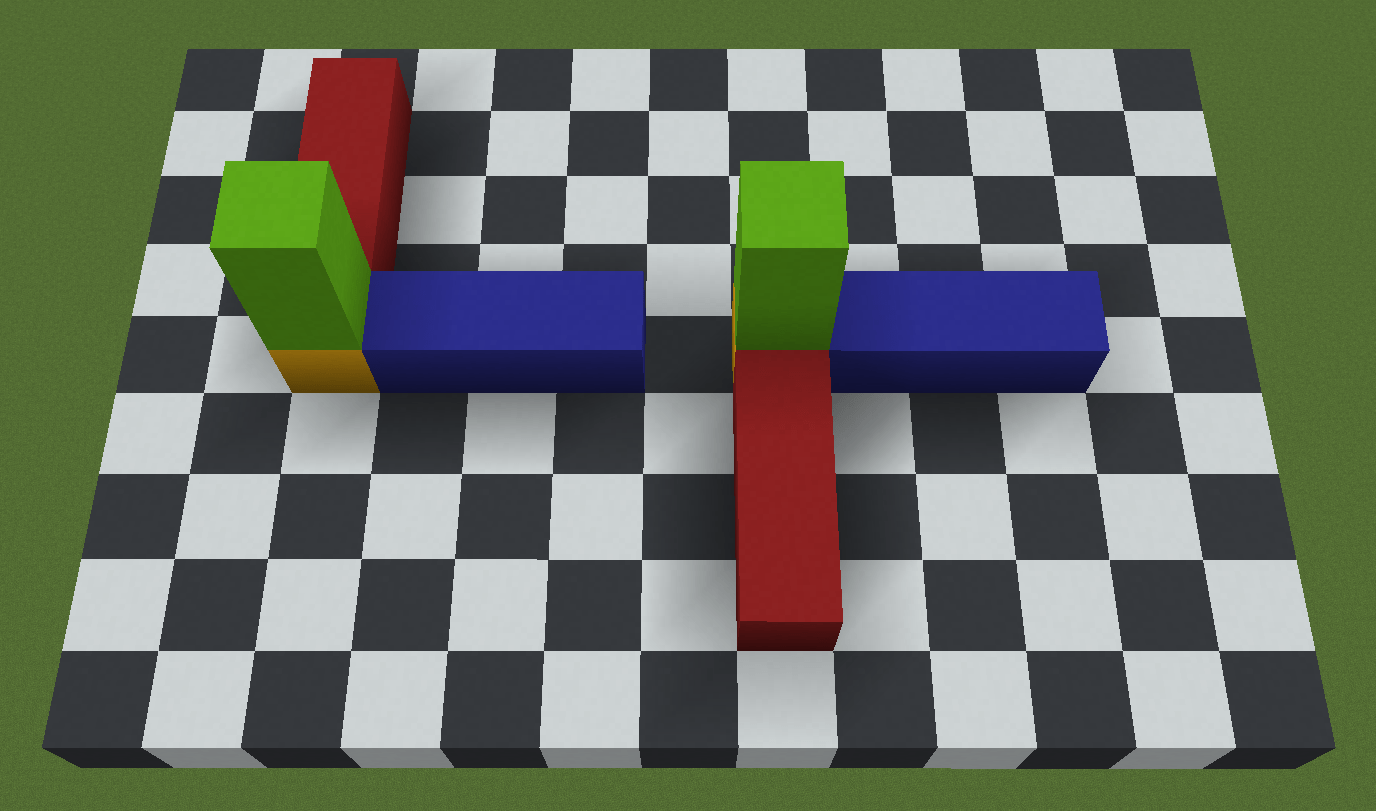
When flipped in the X-axis, the structure extends in a different direction.
If you want to “align” two structures that extend only in the positive directions, you need to correct for this effect by translating by the size of the structure minus one in certain axes. In this case, you would need to change (0,1,5) in the penultimate line to (3,1,5):
with editor.pushTransform(Transform((3,1,5), flip=(True, False, False))):
    buildExampleStructure(editor)
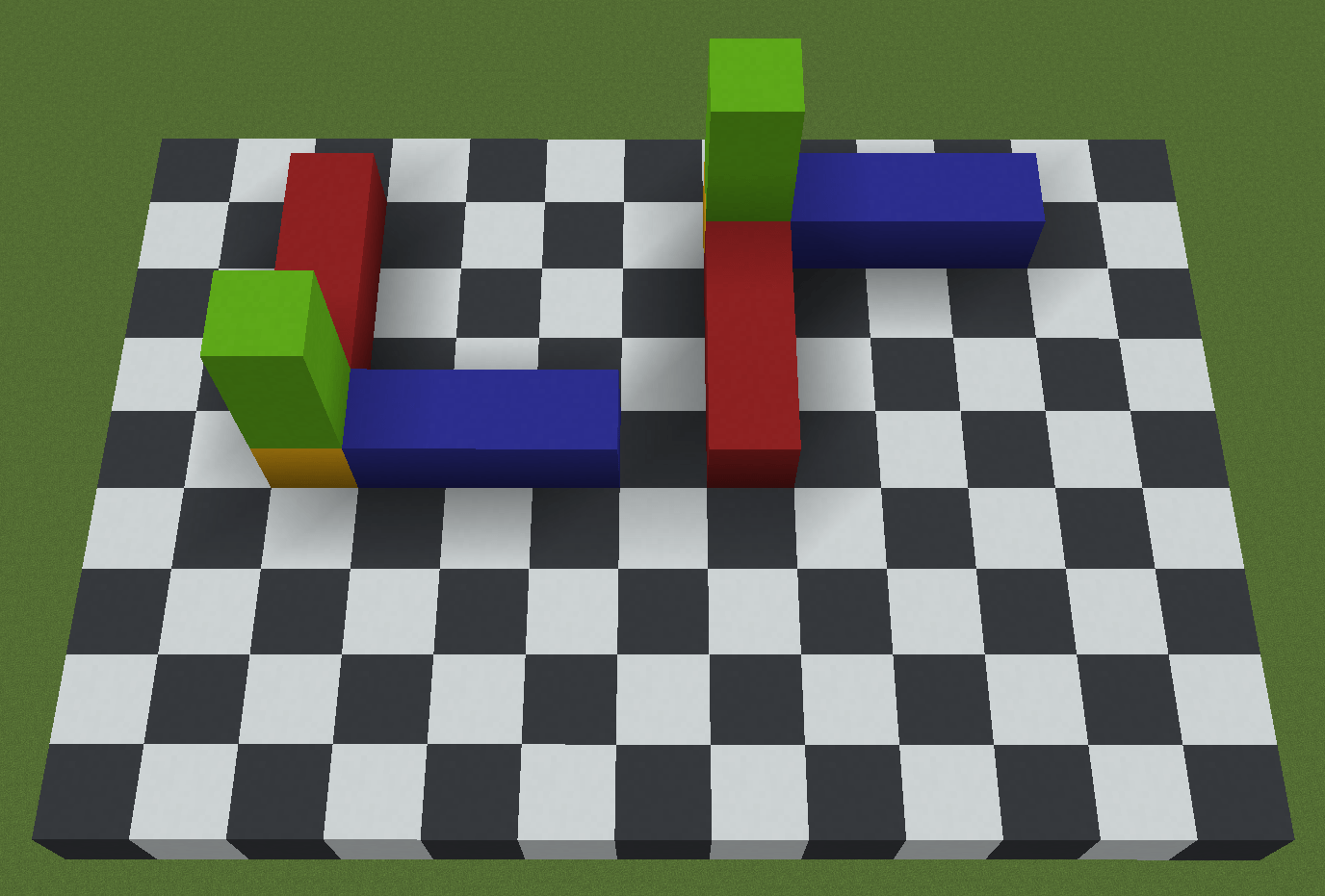
Now the structures are aligned.
The transform module contains some helper functions that compute a
Transform with these corrections built-in, given the size of the structure.
One of these is flippedBoxTransform(). In the previous example, you could
replace the last two lines with:
targetBox = Box((0,1,5), (4,3,4))
with editor.pushTransform(flippedBoxTransform(targetBox, (True, False, False))):
    buildExampleStructure(editor)
)
For more details, see the API reference.